

Reports
Sources
Docs: Plots, Policies, Powers Web App: Open a Parable in Ponder. The Refresh menu at the top right of the Parable editor leads with the Refresh on screen, unless it is Latest, then Refresh, which runs the Report now, Refresh everything, which runs it now and recomputes every Pipeline, Preview, which runs it on a sample of the data, and Plan Refreshes, which schedules it; below them it selects Latest or a stored run, which the UI calls a Refresh. Refresh in an empty run History of a Plot runs it too. A Report is one execution of a Parable’s Pipelines, the Plots whose Pipeline switch is on. Each run produces durable outputs that readers can select later, even after the Parable’s code changes. A Parable’s definition version identifies code and schema; a Report identifies produced data. A Refresh needs a Release. Any Parable with a Release and a Pipeline can run a Report, in every Collaboration Mode. A run needs no setup. Each run runs the Pipelines whose run key changed and reuses the output of the others (Reuse unchanged Pipelines). Plan Refreshes adds a schedule. A Personal Parable follows the same rule. Before its first Release, the Refresh menu shows Refresh refused, with the reason. After it, the menu offers Refresh, and Cancel Refresh while one runs. Each Refresh runs the Newest Release, and the schedules of that Release run. The person with Primary reads which Release a Refresh runs on the Personal sign: Personal. Changes save at once and go into no Release. A Refresh runs the Newest Release, v1.4. A schedule changed with Plan Refreshes in Personal is a saved change like any other. It goes into the next Release, and until that Publish the schedules of the Newest Release keep running. Parables are product experiences, and a Page that makes its reader wait has failed. Make any expensive query a Pipeline, judged by what it scans, joins, aggregates or calls and by measured read times, so Pages read stored rows instead of computing them on every read. A reader sees when the data was produced and can refresh it. A Pipeline is as fresh as its last run, so schedule runs as often as the Pages need. A Parable delivered to a Workspace carries its Reports and their schedules. The Workspace can run the Reports, and publishing its own changes keeps them. A schedule is the Parable’s default: every Workspace that publishes the Parable runs it, each on its own, and a Workspace can change it for itself. See Who runs a schedule.Run a Report now
- Open the Parable and choose Refresh at the top of the Refresh menu, or Refresh in a Plot’s empty run History. Both send the Plot Report action. The menu offers it to a seat that may work in Publishing and moves you to Publishing first when you are Peeking or Pinging. A Personal Parable gets the same menu. On a Version with no Refresh yet, Power on Parable where the Pages go sends the same action (Read a Report).
- Parable captures the exact definition, the SQL implementation of each Plot it runs, and your identity as the requester.
- The run is queued and produces real outputs before it is shown as complete.
A run is
pendinguntil a Plot starts,runningwhile its Plots execute, andcompleteonly when every Plot in it has succeeded. The first Plot that fails makes the runfailed, and a cancelled Plot makes itcancelled; neither publishes any output. Each Plot has its own status: Pending, Running, paused at its budget while it waits for a higher budget, Complete, Failed or Cancelled. The run picker lists every run with its status, and only a complete run has rows to read. Selecting any other run shows its status, and its message when it failed, never rows. Pending, failed, empty, stale, unavailable, and incompatible results are shown as such; Parable does not switch readings to hide a failure. Each Plot’s History tab shows the same runs; see Plots.
Preview a Report
Preview runs the whole Report end to end on a sample of the real data, so a Parable that takes a long time to refresh can be checked in a fraction of that time. A Preview needs the Parable manage permission and Publishing or Primary, on a published Version or on a set of Changes. A Preview needs a Release. On a Parable with no Release, the Refresh menu turns Preview and Refresh off. This includes a Workspace copy that has not taken its first Release. A Preview of a Patch there is refused before anything is stored. A Patch that does not exist, or a Pending Patch that another person started, gets its own refusal first.- The same run. A Preview captures the definition, each Pipeline’s SQL and inputs, and the shared settings when it starts. It captures the AS OF time as a Refresh does. A Piece edit or a settings save after that does not show in it. Preview again to see the change. The run executes every Pipeline in the same order, with the same SQL and the same Jev calls. Its outputs are stored like a Refresh’s.
- On a sample. Every Provider table the run reads that has more than
10,000 rows is read as
TABLESAMPLE BERNOULLI (10 PERCENT) REPEATABLE (0); smaller tables are read whole. The Pipelines that read other Pipelines read the sampled outputs and are not sampled again. Joins from a large table to a small one, such as events to people or channels, keep every match; a join between two sampled tables keeps about one match in a hundred. The same seed reads the same rows of the same data, so two Previews compare. - On a set of Changes. The Preview reads that set before it is published:
a Pending set as it stands, and a Proposed set as it was proposed. Because a
Preview records a Pending set as it stands, only the set’s author may Preview a Pending set; anyone
who may open a Proposed set may Preview it. A Preview of a Published set is
refused and says that the set is already published. A Preview of a Pocketed
set is refused and says to Restore it first. Only the set’s author reads
that answer: for everyone else, a Pocketed set is not found. The set itself
does not change:
its edits go on, and it is proposed and published as before. A Refresh of a
set is refused, because only a published Version is refreshed. The Refresh
menu lists a set’s Previews on that set and a Version’s on the Versions. A
Pending set that changes nothing yet seals as the Version it was made from,
so its Preview is that Version’s, and the menu lists the Version’s runs on
the set.
For a pulled Patch, Preview includes the incoming fix and the conflict choices
you selected. Resolve any remaining conflicts before Preview. Later edits or
publications do not change the SQL captured by an existing Preview.
Parable staff turn on Previews of a pulled Patch for each environment.
While they are off, a Preview of a pulled Patch is refused with
PA-AU-122, and nothing runs. Every other Preview still runs. - Under the published Policies. A Preview of a set of Changes is
computed and stored under the line’s published Policies, not under the
set’s draft Policies. The
view.preferencesandview.datagrants decide which saved rows, Pane values and Pane data the run reads, for the person who runs the Preview. A Pane that the current Release holds uses the current Release’s grants. A Pane that a later Release removed, and that the set adds back, needs both the set’s grant and the grant of the newest Version that held it. On a Workspace copy, that history stops at the upstream Release the copy accepted. A newer upstream Release cannot change the floor before the copy accepts it. Only a Pane that no Version of the line ever held uses the set’s grants. As in every run, filter Policies do not shape what a Preview stores: each read applies the current filters of the Parable (Policies). So a set that widens a Policy never shows a reader more than the published Policies allow, and that holds for anyone with Peeking, Pinging, Publishing or Primary who reads the set. A Preview does not show what the draft Policies change. - Says what it read. A Preview you choose says so on the Refresh control, with the sample it read: 2m ago · Preview: a 10 percent sample. Hover the control for the whole sample. The words come from the sample that the run recorded.
- Never Latest. A Preview is listed with the Refreshes and marked
preview. A reader reads it only by choosing it: Latest, the API’s Current, SQL that namesparables.{parable}.{plot}and the Version a reader is held on all skip it. - One at a time. A Preview waits while any run of its Report moves. A Refresh does not wait for a Preview, because a Preview never becomes Latest. So a Preview never holds back Power on Parable, a Refresh or a scheduled run. Cancel Refresh stops either.
Cancel a run or raise a paused Plot’s budget
A Refresh or a Preview that is still moving can be cancelled, from Cancel Refresh at the top of the Refresh menu, from Cancel beside its progress bar, or from its row in a Plot’s History tab. Every Plot still queued, running or paused at its budget stops. Model calls already paid for stay cached, so running the Report again does not pay for them twice. The run becomescancelled within a few
seconds and never becomes readable; the newest complete run stays the one
Latest reads. Cancelling a cancelled run changes nothing. A run that already
completed cannot be cancelled. A run that a failed Plot is failing becomes
failed, and the cancel says so.
Cancel also settles a run whose last Plot status never reached the Report, so
the run looks unfinished although nothing of it is still running. The Plots
that finished but never reported close as cancelled, and the run becomes
cancelled, or failed when one of its Plots failed. The Report can then run
again. On a run that already failed, Cancel closes any Plot it left showing
running. A cancelled scheduled run does not count as a failure of its Report
plan.
A Pocket cancels every run that is still moving. When a Workspace Pockets its
Deployment, the runs of that Deployment stop. When Parable staff Pocket the
Parable in Admin, the runs of the Parable and of every copy stop. Each run
and each of its open Plots becomes cancelled at once and reads “Cancelled
because the Parable was Pocketed.” in the Plot’s History tab. Then Parable
asks query-runner to stop the query runs of each run. The Pocket waits at most
five seconds for these answers. If query-runner does not answer, a query run
can continue to its end, but its output does not become readable. A later
Plot status never opens a closed Plot again, and a late cancel keeps the
Pocket’s sentence. If a query run fails or finishes late, its Plot shows how it
ended, and the run stays cancelled. A Restore does not start the
runs again. A run that already ended stays as it ended. The audit log records
each cancelled run with the person who Pocketed the Parable. When Parable staff
delete a Parable or a copy in Admin, its runs end in the same way, with
“Cancelled because the Parable was deleted.”
A Plot that reaches its cost, call or runtime cap pauses at its budget
while the run stays running. Raise budget on that
Plot’s History row, or on the run’s paused state where the Page goes, shows
what it has spent against its caps and takes new
caps for this run only. Each new cap must be above the current cap and above
what the Plot has used; the runtime cap counts from when the Plot started,
including the time it was paused. The Plot resumes from what it had spent,
without a publish, and its published caps do not change.
The dialog closes when the server accepts the raise, or when the Plot no
longer waits at its budget. Opening Raise budget again starts a new
dialog, which an earlier raise does not close.
A paused Plot waits four hours for a raise. When no one raises it in that
time, the Plot fails and says that no one raised its budget, and the run
becomes failed. The run’s other Plots are cancelled, so the Report’s next
scheduled run is not held back by a run that cannot finish. Model calls
already paid for stay cached. Raise the Plot’s caps, or make its query
cheaper, before the next run.
Cancelling uses the same check as Plot Report: Parable manage permission
and Publishing or Primary. Raising a budget allows spend beyond the published
caps, so it needs the budget override permission, which
Workspace Administrators hold, and Primary. Both are recorded in the
audit trail with the person, the run and, for a raise, the previous and new
caps.
Each Plot of a run executes its captured SQL at the captured publication, so a
later publish does not change it. If the run cannot start, the request returns
an error and the run stays pending. A retry with the same request key starts it
again. If the run’s captured inputs no longer match its published Version, the
run fails.
When a run never starts and nobody retries it, the scheduler starts it within a
few minutes. A run executes under its captured
principal: the person who chose Plot Report, or the Workspace for a
scheduled run. Planning applies that principal’s Policies (each Plot’s Pane
Policies and each Provider table’s Provider Policy) and records the sources it
read. A person
whose Provider Policies narrow a Provider table the run reads is refused
before the run starts, because the run would store only their rows for
everyone; no Provider Policy narrows the Workspace.
A Plot in a Report run reads four kinds of input:
- Provider and Plot tables (
providers.*,parables.*). Planning applies the principal’s Policies to each (each Plot’s Pane Policies and each Provider table’s data policy) and records the sources it read. - Artifact tables (
artifacts.*). They have no Policies. A run reads each at its pinned version, as below. - Workspace tables (
workspace.*, such asworkspace.users). They have no Policies and hold only the run’s Workspace’s rows, as any query of the Workspace sees them. A run reads each table once when it plans the Plot. - Saved rows (
parables.<parable>.<pane>,_by_actorand_data). A run has no reader, so a Plot reads each Pane’s rows layered with no reader, This Parable’s over the Parable’s Default, and every team’s through_by_actor, never a person’s own, as below.
providers_quality.summary.*, and name it. A run of a
Pipeline published earlier refuses the table when it plans that Plot: the Plot
fails with QL-PL-016, and its message says it
reads a table a Report run cannot read. Read such a table in a Plot that is not
a Pipeline.
Every Plot of a Report run reads its inputs as of one time, the run’s AS OF
time. Every run records an
AS OF time. For Plot Report it is the moment you chose it; for a scheduled
run it is the occurrence, even when the scheduler reaches it late. Each Plot
reads every versioned input at the last version committed before that
time: every Provider and artifact table, and every Plot table except a
Pipeline’s. A Pipeline of the same Report is read from the table this run
wrote. Times are compared to the whole
second, so a commit made in the same second as the AS OF time is not read. A
commit that lands while the run is queued, or between two Plots, is not read
either, and a restart pins the same versions. Each pin also records when its
version was committed, to the second, so the run shows how old the data it
read from that table was. Workspace tables have no
versions.
A Plot reads them when its query run is planned, at or after the AS OF time,
and the run records when it read each one. Every stage of that Plot reads the same rows. The
Plots of one run are planned separately, so two of them can read a Workspace
table a few seconds apart, and a restart from planning reads it again.
Saved rows are the exception: the run keeps the moment it started, and every
Plot reads each Pane’s rows as they were then, keeping only the rows whose
Pane’s view.preferences Policy allows the run’s principal. A Pane showing
that run reads the rows as of that moment too, filtered by the reader’s
current Policies, and the history an old run needs is kept as long as the run
is (Preferences). When a row
that a Pipeline read changes after the run started, the Pipeline’s result
says These settings changed since the last run. To a person who may start
a Refresh, it also offers Preview, a run on a sample, and Run, with its
estimate. This includes a Lab Parable and a Personal Parable with a Release.
Before the first Release, the notice offers neither, as the Refresh menu
refuses Refresh. While the page still loads, the
notice waits until it knows, then offers them.
An input whose table has never been written, whose Provider is not connected
in the Workspace, or whose stream the Workspace has not enabled on a Provider
it has connected, reads as an empty table, and the run records it as empty
with the reason never_written, not_connected or
not_enabled, so a Report can say there is no data yet rather than show zero
and the run still completes. A not_enabled input also names its stream,
the Provider stream that feeds it (replies for providers.slack.replies), so
a Report can say which stream to turn on; the providers.identity family,
which any directory stream feeds, names none. An input with no readable version at that
time, because its table was created later or retention removed that version,
fails the Plot with QL-PL-005 instead of reading newer data.
A run can read a Pipeline of a Platform Parable, directly or through a view
(Parable Pool).
It reads the Release of that Parable that the run’s Version pinned when it was
published. When the run is captured, each such Pipeline is pinned to the
newest complete Refresh of that Parable that completed at or before the run’s
AS OF time and whose output fits the Pipeline’s definition in the pinned
Release. A Refresh that failed, was cancelled or has expired is never pinned.
Every plan and restart of the run reads that Refresh as it completed, so a
newer Refresh of that Parable does not change what the run reads, and the
run’s output names the Refresh it read.
A Refresh is seen a few seconds after it completes. Two runs with the same AS
OF time can therefore pin different Refreshes: a Plot Report pressed in
those seconds pins the Refresh before it, and a scheduled run for the same time
captured afterwards pins the new one. The earlier capture reads older data;
neither fails.
When that Parable completed no Refresh by the AS OF time, the run reads the
Pipeline as an empty table. When every fitting Refresh it completed by then has
left retention, the run is refused rather than read the Pipeline as empty:
Plot Report answers with a 409 that says so. A scheduled occurrence that is
refused this way counts as a failure on the schedule and names its reason, but
the schedule is not paused, and its next occurrence reads the Refreshes
completed by it. When retention deletes the pinned Refresh after the run was
captured, the Plot and its run fail. The run answers to the sources that
Refresh captured, as a run that reads any stored Refresh does: a person those
sources refuse, or whose Provider Policies narrow them, cannot run it.
A Plot that reads a Pipeline of any other Parable gets PV_REF_002, and
Prepare and Publish refuse it.
Incremental Pipelines
An incremental Pipeline keeps one table that its interval runs update as data lands. A Refresh does not run it. The Refresh plans the Pipeline, then pins the table of its current epoch at the version of its newest interval commit. While a publish’s new epoch builds, a Refresh waits for it, and pins the epoch before it when the new one is not done at the end of the wait (Epochs). Every Plot of the run that reads the Pipeline reads that version. A later interval commit does not change what the run reads. The Pipeline’s result shows the run that wrote the pinned version as the run it reused. A Pipeline that has committed no interval yet runs, as any member does. A Preview runs every member, incremental ones too, because its Plots can differ from the Version whose intervals the ledger holds. A Refresh waits for its incremental members to catch up before it pins them (PARABLE-8079):- The Refresh holds each incremental member back while an interval of an incremental member waits for a run, or runs. An interval also waits while its completion has not yet marked the intervals of the Pipelines that read it. The Refresh also waits for a sync of a tap that a member reads, which landed before the Refresh but which Parable has not marked yet (PARABLE-8246). A sync that lands after the Refresh does not hold it, and neither does an interval that only such a sync changed. A Pipeline that reads another incremental Pipeline waits for each of its intervals, because they change only when the upstream intervals complete. An interval whose next try comes after the limit, such as one that keeps failing, does not hold the Refresh. While a publish’s new epoch of a member builds, the Refresh waits for it too. The member pins the new epoch when it is done within the wait, else the epoch before it.
- When no interval that it waits for remains, the Refresh releases its incremental members together, within a minute. Each one pins its table, and the members that read them run after them, as for any member.
- The wait has a limit, 30 minutes by default
(
QUERY_RUNNER_INCREMENTAL_REFRESH_WAIT_MINUTES). At the limit the members pin the state their tables have then. Parable logs a warning (query_run.incremental_pin_incomplete) and counts the pin (query_runner.incremental.refresh_pins_incomplete). Each Pipeline of a chain adds a few minutes once its data stops changing, and up to itsmaxDelayMinuteswhile it keeps changing. So a chain of two or more incremental Pipelines can reach the limit; raise it for a deeper chain.
QL-PL-022, which names the filter and the lost column. Unsupported operators,
including windows, limits and outer joins, also refuse storage when a filter
needs to cross them.
A Current-data read retries that storage refusal once by running the saved
Plot SQL as the reader. An explicitly selected Refresh or a request that
requires stored data returns the refusal. A Page on Latest reads each Pipeline
Plot from the Refresh it holds. When that read gets this refusal, the Page
reads that one Plot once more as Current, so the retry still runs. That Plot
can then show live data or the newest Refresh, while the other Plots stay on
the held Refresh. An older output without a complete
source-ancestry record is refused when its Plot read a Plot of a Platform
Parable, even when no current filter appears to narrow it. Parable refreshes
the Parable itself to create that record
(Refresh by Parable). While it runs, a Pane that reads
Latest shows the Refresh in progress, not the refusal. A read applies upstream
filters only to Plots of other Parables, so an older output whose Plot read only
Provider tables and Plots of its own Parable needs no such record. It reads when its own record
also lists every source behind the stored outputs it read, because the reader is
checked against each source the record lists. Each of those stored outputs must
still be the current output of its Plot. When one of them is not, when the
record leaves out a source behind one, or when the record lists a Plot that
its run kept no stored output of and that no stored output it read lists (a
view, for example), Parable cannot tell what stood behind the output. It
refuses the output until its Plot is refreshed, and the Refresh by Parable
refreshes it.
The live retry still reads the stored Refresh of each Plot that the saved SQL
reads, in this Parable or in a Platform Parable. When one of those Refreshes
is refused for the same reason, the retry gets QL-PL-022 too. When the saved SQL names that Plot itself, the refusal
names it, and its details carry the Plot’s Parable id and key
(Flight SQL errors). The
Pane’s read error then offers Open Plot, which opens that Plot in Ponder
in a new tab. Refresh it there, then read the Pane again. A Plot that the
saved SQL reads only through a view is never named, because the view’s source
can be closed to the reader. A reader who may not inspect the source of the
Plot read gets no name and no Open Plot on any read.
Open Plot opens only a Parable that the Workspace’s members can open. A
Platform Parable that is not Visible in the Workspace reads as an empty table,
so no read is refused for it. Refreshing the Plot still needs a seat that may
work in Publishing, such as the Workspace administrators’ Primary. A member
who holds only Pinging sees the Plot and its run History, and asks one of
them.
Changes to
audiences, switches and in_plot sets apply on the next read. A newly required column that the saved
output lacks causes the same refusal and Current-data retry.
Each Plot that completes also records the Providers it read, for the Refresh
menu: one row per Workspace connection of each Provider, named for the product
(its catalog grouping’s name, else its connector’s, such as BambooHR). When
the Workspace has more than one connection of a Provider, each of its rows is
named for its connection instead, such as Acme BambooHR, so the rows can
be told apart. Each row also records how the Provider delivers its data, as
the Provider catalog classifies it: streaming, batch, or unknown when the catalog
has not classified the connector. A row keeps the name and delivery it
recorded; a later catalog change does not rewrite an older Refresh. Each row
has the newest commit
time among the Provider’s tables the Plot pinned (how old its data was), the
connection’s status and detail as the Providers directory settles them at that
moment (while a sync runs, the status before it), and the Provider’s logo as
the catalog had it (its grouping’s, else its vendor’s). A Provider the Plot
read as empty because the Workspace has not connected it gets a row with no
connection; a Provider whose stream is off gets its connection’s row. A
Provider the Plot read only as empty keeps why:
never_written when it is connected but none of its tables the Plot read had
data yet, not_connected when the Workspace had not connected it, and
not_enabled when a stream it read was off. When its tables read as empty for
different reasons, not_connected outranks not_enabled, which outranks
never_written: a stream that is off sends no data however long the reader
waits. The row also keeps every stream the Plot read while it was off,
whether or not the Provider’s other streams had data. The Plots of one run add to the same rows, each moving the
data’s age forward to the newest commit any of them read and adding the
streams it read off; a Provider any of them pinned data from has no reason,
but keeps its streams off.
Time functions such as now() return the AS OF time too, in the Plot’s SQL and
in Policy conditions. The run records whether the Plot read the clock that way.
It also records whether the Plot calls another function whose result can change
from one call to the next. AI functions do not count: each answer
is kept and reused. A Report run cannot plan a Plot that calls random().
Such a Plot fails when the run tries to plan it. Each Plot also runs with the
SQL parameters its captured SQL holds.
A Page’s live Plots can read directories beside a Report’s stored outputs:
Team Time Spend’s teams reads the identity directory, and a
providerConnections Plot reads workspace.providers. So a run also captures the
Workspace directory projections its Version’s Plots read, such as
workspace.users and workspace.providers, when it is requested. A reader who
picks an older Refresh reads each directory as that Refresh saw it: the
projections from the rows the run captured (a captured empty directory reads as
empty), and the derived identity directory (providers.identity.*) at its
version as of the run’s AS OF time, under the reader’s current Provider
Policies. A directory the run did not capture, and an identity version that
retention removed, read current rows
instead, and the Pane says Directory data is current, not as of this
Refresh. Other Provider data a live Plot reads still needs a snapshot the
run bound; current facts are never silently substituted.
Each query run writes its Plot’s output to a table of its own, once, and a
later run never overwrites it. The table lives in the Workspace’s own storage,
beside its Provider tables. The run stores the vectors of an embed() column
with its output.
A Workspace without data storage has nowhere to put it: Parable refuses to
plan its Plots, and the run fails. When the query run succeeds, Parable records
that table, the version the run committed and a digest of that commit on the
Plot result. A Plot whose output cannot be recorded fails, and so does its run.
The Report run records each status change of its Plots, usually within five
seconds. Each Plot result records its status, when it
started and finished, its row count, and what it has spent: the cost of its
AI calls in US dollars, and its paid calls. Every reader sees the same values,
except the row count: a reader sees it only when they could read every row it
counts. A filter Policy on a Plot the result read, a
Provider Policy on a Provider table it read,
or, while the Workspace enforces source permissions, source permissions on
such a table hide it from the readers they narrow. A failed or cancelled
Plot carries a short message chosen by its error code, never the query’s own
error text. When one Plot fails, the run cancels its other Plots, and their
results say they were cancelled because another Plot failed. Such a cancel
makes the run failed, even when it arrives before the failure: the run then
says only that a Plot failed, and the failure, when it arrives, names its
Plot. A complete, failed or cancelled run keeps its status: a later change,
such as a cancelled Plot that finished anyway, updates only that Plot’s result.
A later change never opens a closed Plot of such a run again: a status that
says the query run is queued, running or paused at its budget leaves the Plot
as it ended. A late cancel of a cancelled Plot keeps the reason it was
cancelled for.
A Plot pays for each AI answer once. All runs of a Plot read and append to one
inference log. Parable keeps that log in the Workspace’s storage, beside the
Plot’s outputs. When a ponder() or
embed() call has the same model, instruction, output type and input values as
an answer an earlier run of that Plot received, the run takes the answer from
the log. It makes no Provider call and costs the run nothing. A rerun over
unchanged input therefore records zero paid calls, and a run after an input
changed pays only for the rows whose input changed. A call that failed in an
earlier run is not reused; the next run tries it again. Plots do not share
logs, so two Plots that make the same call each pay for it once. Parable never
removes an answer that a later run could reuse.
Because a Pipeline pays only for answers its log lacks, the cost of its next
run can be counted before it runs. An estimate of a Pipeline plans it as
its next run would, builds the rows each AI call will be asked about, and counts
those the log already answers. It makes no AI call, writes no output, adds
nothing to the log and leaves the Pipeline’s History unchanged. For each call
it reports the model, the rows, the rows the log answers, and the paid calls
for the rest, priced at what the log’s answers of that call cost, else of that
function, else left unpriced. It also says whether the run would pause at its
call or cost cap.
Reuse unchanged Pipelines
A Refresh or a Preview runs only the Pipelines whose run key changed. Each other Pipeline reuses the output of its newest successful run with the same run key, from a complete run in the same Workspace. A reused Pipeline writes no table, makes no AI call and spends nothing. Its History row says Reused from the Refresh of that run’s time, or the Preview of for a Preview. A Pipeline that reads a reused output keeps its own run key when nothing else changed, so it reuses too. The run key holds everything that decides a Pipeline’s rows:- The plan. The Pipeline’s SQL, its parameters and the Plot views it reads.
- The build of query-runner that runs the Pipeline.
- The data version of each input. For a Provider table, the version of its data. For another Pipeline’s output, its rows.
- The captured inputs. The saved settings and the directory rows that the run captured.
- The sample. A Preview’s sample, or none for a Refresh.
- The authority of the run. The rules on each source for the person whose access runs it, and the filter Policies on each Plot that it reads.
- A query-runner deploy. The build is in every run key, so every Pipeline runs again at the next Refresh after a deploy. The inference log still answers each AI call, so this costs compute and no paid calls.
- New Provider data. Each Pipeline that reads the new data runs again. A Pipeline that reads one of those runs again too, unless the rows it reads did not change.
- Other rules on the sources. A run whose person has other rules on its sources reuses nothing from a run under the first rules.
- A changed Pipeline. A change to a Pipeline’s SQL or its parameters, or to a shared setting that it captures, runs it again.
- A changed filter Policy. A Pipeline that reads a Plot the filter Policy covers runs again. The covered Pipeline itself does not: a Report run writes its rows with no reader filter, and each read applies the current filter (Policies).
- The clock. A Pipeline that reads the clock runs again at each new AS OF time. A Pipeline whose functions can give other rows on each call, or that reads live rows that the run did not capture, never reuses and is never reused.
See what a change runs again
Before you publish a set of Changes, or change a shared row, the rerun list names the Pipelines that the change affects. It is not a Preview, which runs the Report on a sample: it runs nothing but a count of paid AI calls. The Publish panel shows it under the Prepare findings once the Changes are Proposed, as What the next Refresh runs again; Publish stays available beside it. The Preferences tab of a Page or Pane shows What changing a shared setting runs again above its rows. A Pane’s own controls save rows without stopping to show it, so read it there before you change a shared row. The rerun list is an info callout. It shows only when the change runs a Pipeline again. A change that affects no Pipeline shows no callout.- Changed Pipelines, each with why. For a publish: its SQL or parameters change, or it is new; or the Policies of the Pane that owns it change; or a Plot view it reads changes, since a view’s SQL is planned inside each Pipeline that reads it. Each Pipeline whose SQL changes lists the columns the publish adds, removes or retypes, the same diff a Refresh records when it publishes the output. For a shared row: each Pipeline whose SQL reads the row’s Pane by name, directly or through a view of this Parable.
- Downstream Pipelines. Every Pipeline of this Parable that reads a changed Pipeline’s output, directly or through other Plots. A Pipeline the publish deletes runs nothing, but each Pipeline that reads it is listed here, since it loses its input.
- The Refresh cost threshold of the Workspace, $1.00 unless a Workspace administrator sets another.
- Estimated under the published Policies. The Pipeline’s Policies change, and the estimate plans it under the Policies already published; or the Pipeline is new, and the estimate applies none of its own Policies, which only the Changes hold. The Policies of what it reads apply either way. A Pipeline that a later Release removed and the Changes add back is not new: the estimate plans it under the Policies of the newest Version that held it, as a Preview does, and adds this note only when the Changes change those Policies.
- It reads a Pipeline this change also runs again. The estimate reads that Pipeline’s last Refresh, not the rows the change will produce.
- It reads something these Changes add. The estimate plans against the Plots of the published Version, with their published columns. A Pipeline whose plan reads, directly or through Plot views, a Plot that only these Changes add starts no estimate. So does a Pipeline whose SQL names a column that these Changes add to a Plot it reads. The panel names what it reads and says that the cost is known after the next Refresh. When every Pipeline without an estimate waits like this, the total says that some runs have no estimate until the next Refresh.
- It reads a Pipeline with no complete Refresh. The panel names that Pipeline and says that the cost is known after the next Refresh.
- These Changes leave it out of the Refresh.
- Its SQL or settings in these Changes could not be read. A Preview shows whether its Refresh works.
- The estimate could not start. The panel says to try again in a minute.
- The estimate stopped before it counted the calls. A Preview shows whether its Refresh works.
Schedule Reports
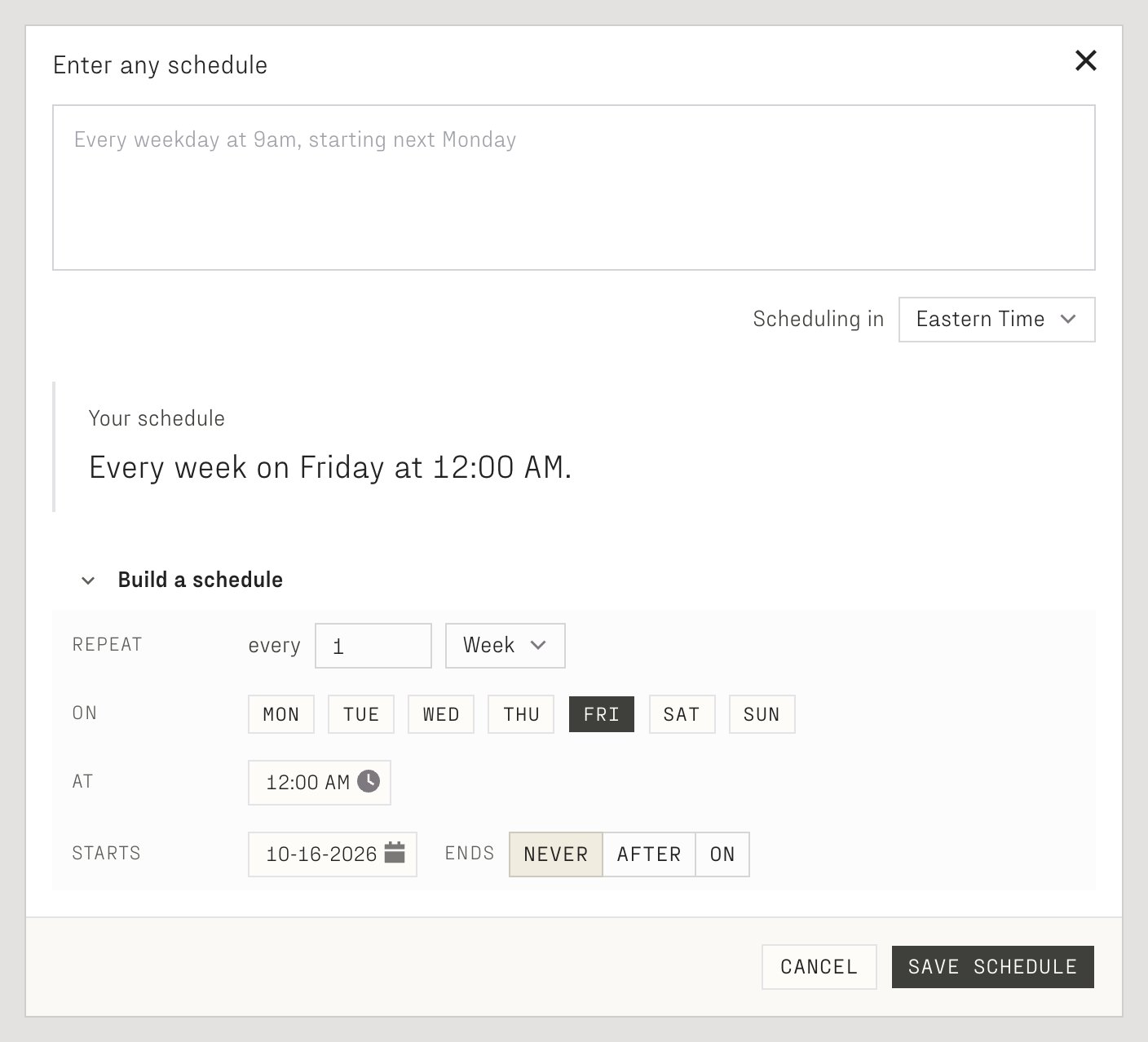
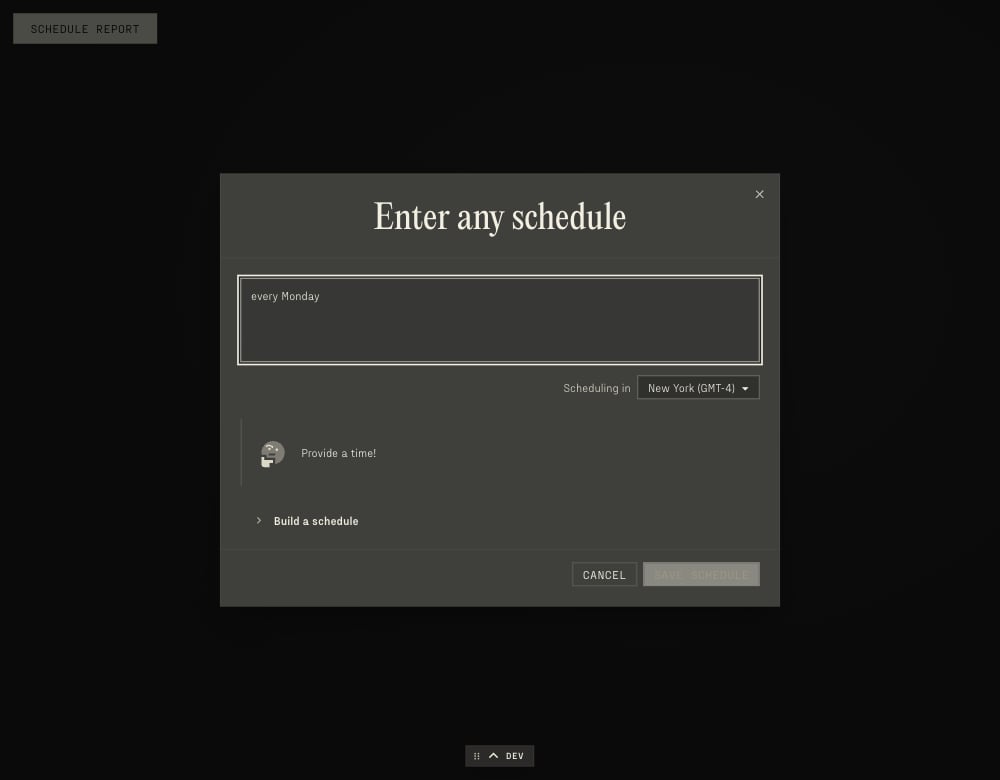
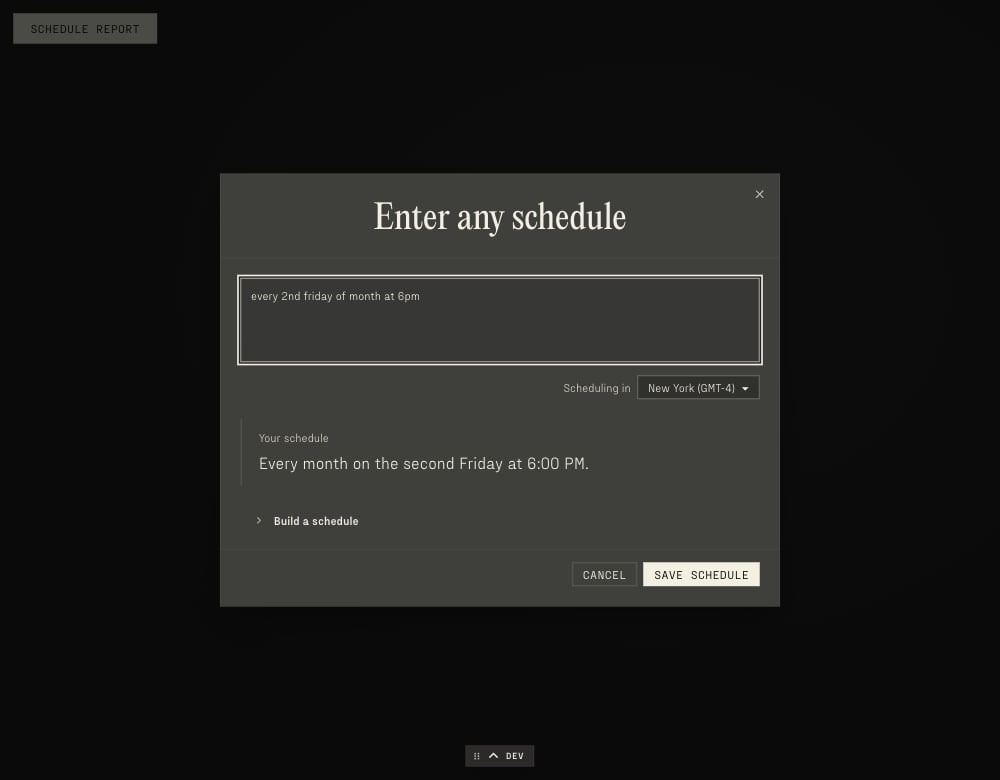
Choose Plan Refreshes in the Refresh menu. A Report with no schedule yet starts on every Friday at 12:00 AM in your timezone, with its upcoming runs: save it as it is, or change it. Enter a schedule in your own words, for example Every weekday at 9am, starting next Monday, or use Build a schedule. Review the interpreted schedule and upcoming runs, then choose Save schedule.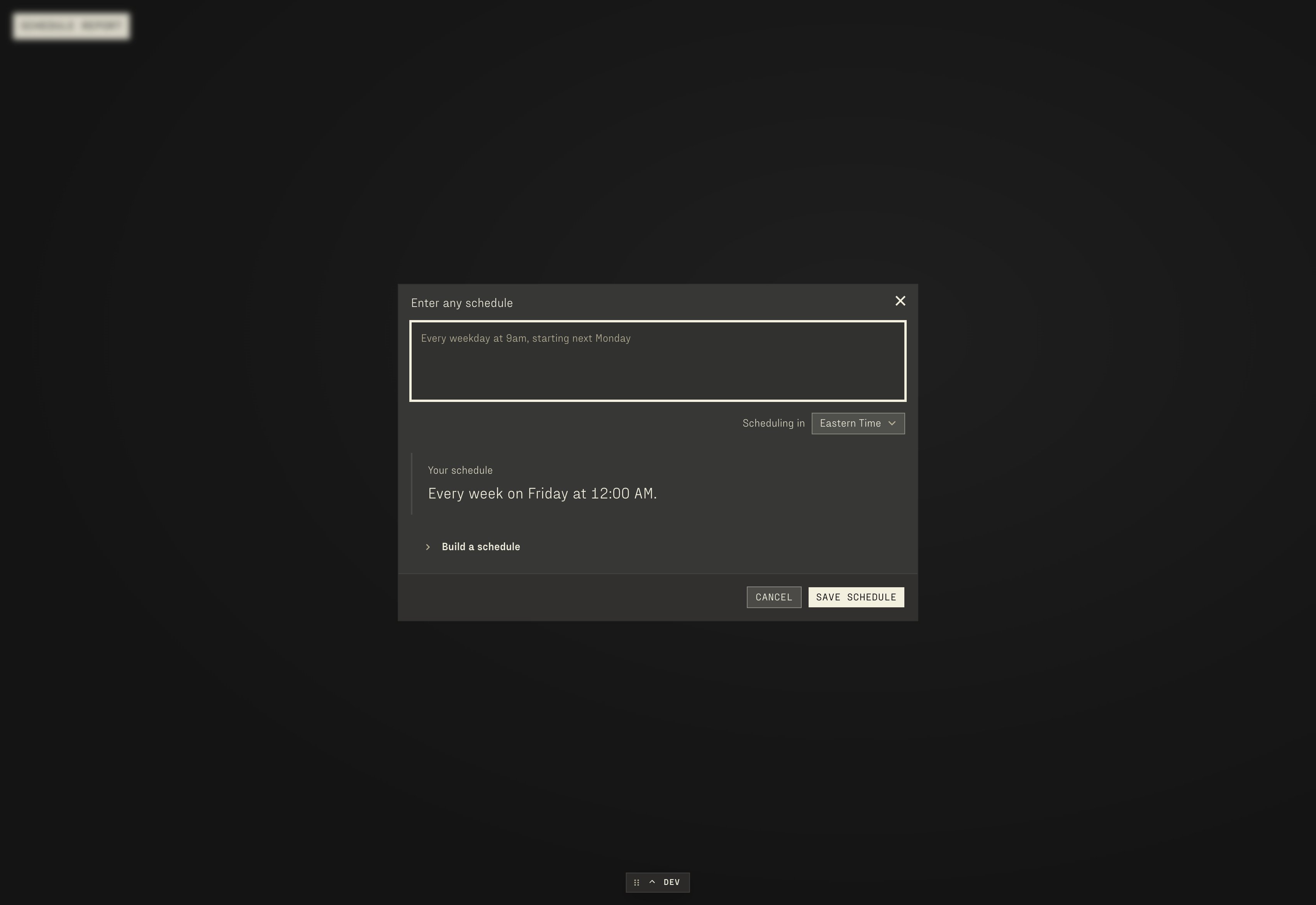
Who runs a schedule
A schedule is part of the Parable’s Version, so it travels with every Delivery. Each Workspace that publishes the Parable runs the schedule its own published Version carries:- The Workspace’s own schedule, when someone changed it in the Workspace’s Changes and published them. It stays when new Versions of the Parable arrive. When a Delivery changes the same schedule, Prepare shows the conflict and the Workspace chooses which to keep.
- Otherwise, the Parable’s default, from the Version the Workspace published. A new default reaches the Workspace when it publishes the Delivery that carries it.
Refresh after sources
A Report plan can also refresh after its sources refresh. Its sources are the Providers its Pipelines read and the Platform Parables whose Pipelines they read. A plan may have a schedule,afterSources, or both. A plan with neither is never scheduled.
afterSources is part of the plan, saved with the Workspace’s Changes and published
with them like the schedule. It has four settings:
A save that sets a value out of range,
or a quiet window longer than the maximum delay, is refused with
PA-AU-040, and the message names the setting.
An archive carries the settings, and an import saves them through
the same check.
Parables that refresh after their sources must not read each other in a loop.
Two Platform Parables can read each other through different Plots: a Plot of A
reads B while another Plot of B reads A. With afterSources on both, every
Refresh of one would set off the other forever. So a save that switches
afterSources on, and a publish whose Version has it on, are refused when
they would close such a loop. The refusal names the Parables in read order,
such as “Shared Kinds reads Team Time reads Shared Kinds”. A loop through a
Parable whose plans all have afterSources off is allowed, because that
Parable’s Refreshes do not follow its sources. A Pocketed Parable still
counts: a Restore brings back its plan and its reads.
A Refresh fired by its sources records the source changes that made the plan
due: for each source, the first and last change that counted. History uses
this record to name what fired the Refresh. Such a Refresh runs as a
scheduled one does: as the Workspace, on the authority of the person who
holds Primary on the Parable, at scheduled priority, reading its inputs as of the fire. A
fire does not run when its plan no longer refreshes after its sources, or when
the plan changed after the scheduler computed the fire.
Plan Refreshes
Plan Refreshes editsafterSources below the schedule. Refresh after its sources refresh
switches it on. On, it shows the three settings, prefilled for a plan that
has none with the defaults: Quiet for 30 min, Wait at most
240 min (4 h) and At most 6 a day. The dialog refuses what the save
refuses, and names the setting. It also refuses a quiet window longer than
the longest wait.
Switching it off keeps the settings. A plan keeps the timezone it saved, with
or without a schedule: that timezone sets the day At most counts in, so
reopening Plan Refreshes in another timezone does not move it. Only a plan
that has never been saved starts in the browser’s timezone.
The switch can be on with or without a schedule. A new plan starts on the
every-Friday default; switching the switch on before changing that default
drops it, and switching it off again before entering a schedule brings it
back. With the switch on and no schedule, the result reads No schedule,
and Save schedule saves a plan that refreshes only after its sources. A
plan with both shows Remove the schedule under its schedule. A plan with
neither cannot be saved.
Under the settings, Sources lists what the plan would watch: each
Provider connection, with its logo, and each Platform Parable it reads with
the age of its newest complete Refresh. A Parable the reader may not see is
listed as Another Parable, with no age. Parable reads the published
Version and computes the list the same way the scheduler does, so the dialog
and the scheduler agree. A line with no published Version lists nothing yet,
and one whose Refreshes have read no Provider lists only its Parables (see
Limits).
A Refresh fired by its sources names them in the Refresh menu, after its age
(2 hrs ago · After Okta synced), and on Latest when Latest stands for
it (Latest (1 min ago) · After Okta synced). A label longer than the menu
ends in an ellipsis. Each Plot’s History names them too, where its
owner is Sources and it reads After Okta synced in place of
Scheduled. A Provider is named by its connection, as the Providers
directory shows it. Two sources are both named, and more read as the first and a
count (After Okta synced and 2 more). Parable names the sources when it
reads the Refreshes, so a renamed connection shows its current name. A
Provider is always named: it is a Workspace connection the reader already
sees in the editor.
When a plan fires after its sources
Every minute, the scheduler decides which plans fire. Each Workspace line of a plan keeps its own floor, changes and fires: one line’s fire is never another line’s floor, and never supersedes another line’s fire.- The floor. A change counts only after the plan’s floor: the newest of its latest save, its pause, the last run the scheduler recorded and its newest fire, of either trigger, that read its sources. A fire skipped because another Refresh of the Report was in flight, or superseded before it was captured, read nothing and is not a floor.
- The changes. Each completed sync of new data from a source Provider, in the plan’s Workspace, after the floor. The scheduler reads syncs from at most seven days back.
- Due. With changes, the plan is due when the newest change is
quietMinutesold or the oldest ismaxDelayMinutesold. It fires at the instant that first held, and its Refresh reads its inputs as of that instant. A change after that instant waits for the next fire. - The daily cap. It fires at most
maxPerDaytimes after its sources on one day in the plan’s timezone; skipped and superseded fires do not count. A capped plan fires at the start of its next day. - A skipped fire. When the capture skips a fire because the Report is running, its changes still count, and the plan tries again a quiet window after the skip.
Refresh for each Proposed Patch
Parable staff configure this setting in the source plan of a Report in a composed Platform Parable. A Release carries it to each Workspace copy. Plan Refreshes shows the setting read-only. The setting has three limits:- Quiet time is 1 to 600 seconds. The default is 5 seconds.
- Longest wait cannot be shorter than quiet time. The default is 600 seconds.
- Daily limit is 1 to 500 automatic runs in the plan’s timezone. The default is 288.
Refresh by Parable
A platform update can make stored outputs older than the rules that now read them. Parable then refreshes the Parable itself. The first rule of this kind is the record of the data sources that each Plot read. An output stored without this record that read a Plot uses older rules. The next rule a platform update adds works the same way. When a reader opens a Page on Latest and the Refresh that Latest reads holds such an output, Parable starts a Refresh at once. A read of that output through Ponder or the API starts it too. The Page shows the Refresh in progress, as for any Refresh. A Page that holds its Refresh reads a refused output once more as Current, so its Pane also shows the Refresh in progress. When the Refresh completes, that Pane reads it. The other Panes stay on the held Refresh, and the Page offers Newer data is ready.- Readers keep the last good data. Latest stays on the newest completed Refresh until the new one completes. A Refresh that fails never replaces it.
- An output that still reads shows its data while the Refresh runs. An output that cannot read shows the Pane’s Refresh state while the Refresh runs, not the technical error. When no Refresh by Parable can run, the read keeps its error.
- No reader needs Publishing or Primary. The platform caused the problem, so the Refresh runs as a scheduled Refresh does. It runs as the Workspace, with the authority of the Parable’s Primary seat, at scheduled priority. It runs the newest published Release and its default Report. It reads its inputs as of its start. It stores outputs under the Parable’s own Policies. Every reader still reads them through their own filters. When no person with Primary can run the Refresh, or the Parable’s Pipelines permission is off, it does not start.
- History and the Refresh menu name it Refresh by Parable. History records that Parable started it, and its row says Started by Parable to repair data after a platform update. A Plot’s own message replaces that line: why the Plot failed or was cancelled, that it paused at its budget, or that its rows wait for the rest of the Refresh.
- A Page on a pinned Refresh, a Patch, or an earlier Release does not start one. The Refresh runs the newest published Release.
- None starts while any Refresh of the Parable is pending or running.
- One Workspace runs one Refresh by Parable at a time. This second limit keeps spend down. Another Parable of the Workspace does not queue. A visit to it while the Refresh by Parable runs starts nothing. A visit after that Refresh ends can start its own. The server keeps its answer for up to one minute, so the first visits after the end can still start nothing. A Refresh by Parable that makes no progress for 2 hours is stuck: no Plot of it moves and the Refresh does not change. It then holds no other Parable of the Workspace back, and the next visit to another Parable starts that Parable’s Refresh by Parable. 2 hours is a heuristic. It matches the runtime alert line of query-runner. One query of a Plot may run for up to 24 hours, and it shows no progress until its status changes. So a slow Refresh with no status change for 2 hours is also treated as stuck, and a second Refresh by Parable can start in the Workspace. That costs spend. Each Parable still runs one Refresh at a time.
- After one fails, the next waits 15 minutes, then 1 hour.
- A Parable gets at most 3 for one Latest Refresh. After that, it waits until a manual or scheduled Refresh completes.
- None starts after a Refresh by Parable whose outputs still predate a rule. Another would store them the same way. A manual or scheduled Refresh moves Latest on.
- None starts when the Latest Refresh is a person’s Refresh that holds a row filter their Provider Policies or source permissions put on a Provider table. The Refresh by Parable captures no such filter, so readers with that filter could not open it. They keep the Refresh they can open.
- A visit never waits for another capture. When another one holds the Workspace or the Parable, the next visit tries again.
Runs about a Patch
A Platform Parable can keep its Pipelines true for each proposed Patch of its Workspace. Its Home Page declares areact contribution that names one of its
Reports (Perceptions). Each run of that
Report is then about one subject: one Patch at the revision that Propose
sealed. A failed call for one Patch holds only that Patch.
- What a run reads. The Pipelines read the Patch through the
subject.*relations, as a Platform Parable’s tab does (Plots). The run builds those rows when it starts and keeps them with its other inputs. They name the Pieces and the Changes of the Patch. They never hold source. - Two Primary seats. Primary on the Platform Parable’s copy runs the Report. The run acts as the Workspace, never as a person. Primary on the Deployment of the Patch binds the Patch and nothing else. When no one who holds Primary there can read the Patch, the run fails and says why.
- The tree. A run records its subject and the tree it read: the sealed head of the Patch and the upstream Release under it. A Publish of another Patch moves this Patch onto the new Release and gives it a new tree. A new upstream Release does the same.
- One at a time. One run of the Report runs at a time for each Patch. A newer start replaces an older run of the same plan and Patch that has not begun.
- Reuse. No run reuses the output of a run about another Patch. Model calls stay memoized by their content, so the same content costs nothing again.
subject.* rows list. A Peeking reader’s subject.* rows list Pages
only, so the run’s outputs are hidden from them and the Pipelines read as empty
tables.
When a run about a Patch ends, each open tab of the Platform Parable reads its
Pipelines again with no reload.
Runs about a Patch stay apart from the Refreshes of the Platform Parable:
- They never become its Latest, never show in its History or in the Refresh menu, and never reach the SQL of other Parables.
- Its Pages never show No data yet or Power on Parable for these Pipelines, and no reader is held on an earlier Release for them.
- No person can Refresh or Preview such a Report by hand. The Refresh menu answers “This Report runs for each proposed Patch.”
- A Pipeline with an incremental declaration cannot run about a Patch. Saving or importing a new combination refuses it. An older declaration can stay unchanged while other edits repair it, but capture still refuses it before any Refresh starts. Remove that declaration to run a separate, complete output for each Patch. These Pipelines never enter interval scheduling, even when incremental runs are enabled.
- A pending Refresh captured before this refusal keeps its captured Release. Retrying it, replaying its original trigger, or recovering it after an interruption refuses that same incompatible combination. The Refresh and its pending Plot results become failed. The refusal submits no new work. It does not cancel work accepted before an interruption. Repairing the current Release does not change the old capture. Use the repaired Release for a new Refresh about the Patch.
Incremental Plots
An incremental Plot declares a time grain (Incremental Plots). Its output is a set of intervals of that length, aligned to UTC. When a source lands new data, Parable marks as changed only the intervals that the data touched. A changed interval is the only part of the output that needs to run again.
An incremental Plot of the same Parable is a source too (PARABLE-8079). When
an interval of it completes, the interval’s range is the change, and the
table above applies to each incremental Plot that reads it. Name it in
sources as parables.{parable}.{plot} to read it by time. So one sync that
touches one hour of an hourly Plot A runs that hour of A, then the day of a
daily Plot B that reads A, and nothing else. A Plot’s grain must be the same
as the grain of each incremental Plot it reads, directly or through a view,
or coarser: publish refuses a finer one. A Plot of another Parable is not a source yet
(PARABLE-6383).
A rebuild of a Provider’s data marks every interval of each incremental Plot
that reads it, because the rebuild does not say which event times changed.
A change to a setting shared for This Parable, or to a Pane row, that a
RESTATE Plot reads runs every interval again too. A person’s own setting
does not.
Every interval of a Plot that runs again for a RESTATE change can cost a
lot, and nobody previews it. So Parable first estimates the paid AI calls of
that run. At or below the Workspace’s Refresh cost threshold, the intervals
run. Above it, or when the estimate fails, they wait until a person with the
budget override permission and the Primary seat approves the run, as for
Raise budget (PARABLE-8249). While they wait, each interval keeps the
rows of its last run. The Pipeline’s History shows the waiting run and its
Approve button
(Run history and status).
A changed interval waits the way a Report plan waits in
Refresh after sources: until its sources stay
unchanged for quietMinutes (default 2), or until its oldest change is
maxDelayMinutes old (default 15). A burst of syncs gives one wait, and a
steady stream of syncs never waits longer than maxDelayMinutes.
Only the incremental Plots that a Report runs are marked. One Workspace’s
data never marks another Workspace’s intervals.
When a changed interval is due, Parable runs that interval alone. The run
reads each source in sources only from the interval’s start, widened back by
the source’s lookback, to its end. On a Provider table that is laid out by
event day, it reads only the days of that window. It keeps only the output
rows whose by column falls in the interval, and replaces the interval’s rows
in the Plot’s table. Other intervals keep their rows.
- An interval whose sources did not change since its last run does not run again. Its rows stay.
- An interval whose run fails runs again on its own, after a wait that grows to at most an hour. Other intervals go on.
- The intervals of one Plot run one at a time in a Workspace.
- A Plot that declares
splitruns each part of an interval as its own run. Each part retries on its own and replaces only its own rows (Split an interval). - A run of a Plot that reads an incremental Plot of its Parable reads that Plot’s current table at its newest interval commit. It waits while that Plot has committed no interval to its current table, and until the run that made the newest commit has succeeded. When that run fails after its commit, the interval of that commit runs again, and the Plot that reads it runs after it.
- A run is refused when the Plot reads a Pipeline of another Parable or a
Pipeline that is not incremental, reads the clock or calls a function whose
result can differ between runs, also through a Plot it reads as a view. A
run is also refused when the planned type of
byor of a source’stimeColumnis not a timestamp, or when the split key does not partition the Plot’s rows.
How long Report runs are kept
Each Report keeps its newest 30 completed runs, plus every run started with Plot Report that completed in the last 90 days. The newest completed run is always kept, so Latest (the API’s Current) never loses it. When a run completes and its Report holds more than that, the older runs leave the Refresh menu at once. A reading pinned to one of them answers unavailable, and Latest and SQL that namesparables.{parable}.{plot} never use it. A read that was already scanning it
fails rather than returning part of it. Parable then deletes their output
tables, usually within an hour.
A run started with Plot Report outside the newest 30 stays until 90 days
after it completed. It leaves at the Report’s next completed run after that,
or at the hourly check, whichever comes first.
Previews keep their own, shorter rule and never count toward the 30: each
Report keeps its newest 3 completed Previews, and none longer than 7 days
after it completed. A Preview checks a set while it changes, so the newest few
matter, and three leave Latest and the recent Refreshes on the menu’s first
screen. Previews outside the rule leave at the Report’s next completed run,
Refresh or Preview, or at the hourly check, whichever comes first.
A failed or cancelled run was never readable. The output tables its finished
Plots wrote are deleted a day after they finish. Failed and cancelled runs
never count toward the 30 or the 3. Each one leaves the Refresh menu and
History 90 days after it ended, the same window as a run started with
Plot Report. The newest failed run of each Report stays however old it
is, so the Report can still say why its last run failed. The newest failed
Preview stays too. A cancelled run has no such exception. These runs leave at
the hourly check, or at the Report’s next completed run, whichever comes
first. Their output tables are then deleted the same way as those of an
expired complete run.
A run about a Patch (Runs about a Patch) keeps its own
rule and never counts toward the 30. The newest completed run about each
revision of each Patch stays with no time limit. Other completed runs about the
same revision leave 30 days after they completed, at the next completed run
about that revision.
Parable deletes an output table only when no result that a reader can still
reach reads it.
Read a Report
The Refresh menu selects Latest or one stored run, a Refresh:-
Latest is one Refresh: the newest completed Refresh whose Release is in
the same major line as the Release on screen. For a Parable with a
Pipeline, every stored Plot on the Pages reads its output from that one
Refresh, through the API’s Current.
- A Release that keeps its major number reads the Refreshes of earlier Releases in its major line at once. Publishing does not start a Refresh, so after a minor publish the stored Plots keep the last completed Refresh, and live Plots continue to read live tables.
- A major Release needs a Refresh of its own major line. A person with Publishing or Primary chooses Publish as Major Version for a change that the earlier Refreshes cannot serve. Only the source Deployment offers it, after its first Publish. A copy takes its major number from its source and refuses it. The source’s first Release is always v1.0, so Major changes nothing on a first Publish through Ponder or the API, and the answer says so.
- A stored Plot that the Refresh did not store, such as a Plot that is new in a minor Release, or whose output shape the Release changed, has no data until the next Refresh. The Pages do not look for it in older Refreshes.
- SQL that names
parables.{parable}.{plot}chooses for each Plot: the newest completed Report whose output fits the published definition. That is the same run except after a change to the Plot’s output shape. A run that completes reaches it within moments (Plots).
PD-RESULT-002, not a raw Plot failure. They wait only while a Refresh is queued or running; with none, the Pane says No data yet with the server’s reason (Plots). On the published line and on a set of Changes the Pages do not get that far: No data yet takes their place, below. The Latest row says No data yet. too. The Latest row shows the server’s sentence. On an older Release whose major number is not the newest Release’s, no Refresh will ever fill Latest, because a Refresh runs only the newest Release. The row then says “This Release has no data, and no Refresh will add it. A Refresh runs only the newest Release. Choose the newest Release to read data.” Existing contract and access checks still apply. -
A reader on the newest Release is served the newest Version whose stored
Plots can be served. A Version can be served when it stores nothing, when
its major line has a completed Refresh (its own, or one of an earlier
Release in the same major line), or when its Refreshes cannot be read.
Ponder and Admin Ponder serve the same Version, and the rule is one: a visit
lands on the newest Release that has a complete Refresh, with that Refresh,
and a Parable never shows Power on Parable while a Release has data to
show. The rule holds for anyone with Peeking, Pinging, Publishing or
Primary, in Peeking mode and in Publishing mode. In Publishing mode with no
Changes open, the Pages read the line’s own tree, which is the newest
Release’s. Empty Changes read the same tree, such as a person’s own Patch
that they opened and did not edit, because they are that Release. A visit
that would land on the person’s own Patch (PARABLE-8316) lands instead on the
newest earlier Release that can be served while an empty Patch’s Release
cannot, as in Peeking mode, and the empty Patch waits in the Release menu. Changes that change something, a Release or
Changes that a person picks, and a link that names a Release are read as
named. A set of Changes that changes something reads its own Preview, and
says These Changes have no Preview yet until it has one.
- After a major publish, readers stay on the newest earlier Version that can be served, with its data on screen. That is usually the Version they were already reading; a reader is never moved back past a Version that reads the last completed Refresh. Meanwhile Latest · Refreshing… and the progress bar show the new Version’s first Report. The Release menu marks the new Release in progress with the same spinner as the Refresh control, and the Release control names the Release on screen. The Refresh menu lists the running Refresh with its status.
- Choosing the newer Release, or its running Refresh, in a menu opens that Release. The state says Refreshing Data, with the bar of Pipelines done and a button, Go to Latest Refresh, that returns to the newest complete combination of a Release and a Refresh: the address with no Release and no Refresh. The button shows only when such a combination exists. With none, the state says Powering on… as below.
- When that Report completes, the reader stays on the previous Version: nothing moves without a click (Tyler, 2026-10-25). Within a few seconds the page names that Version in the address, so a reload or a later read keeps it, and a notice says v1.40 is ready with Open v1.40. The notice waits while the new Version still refreshes, so it comes once.
- Open v1.40 and a choice in the Release menu swap as soon as the chosen Page has drawn, so they show that Version’s own loading state at once.
- A pick of Newest never opens from the tab’s memory. It reads the newest Release, as any other choice in the Release menu does.
- A Plot the newer Version deleted does not refuse the Version and the runs
that read it. Admitting a reader to a stored output that read a Plot a
later publish deleted judges that Plot as if it were still there, with its
owning Pane’s Policies as of the newest Version that had it, at the
reader’s current rank. A read of the deleted Plot itself,
as the older Version’s deleted Pane makes, is judged the same way, and
its rows are narrowed by every view filter Policy on the line that binds
the reader and by the
ownview filters on the deleted Pane andtreeview filters on Pages or Panes above it in the read window before the deletion. A reader who could read it before the deletion still can, narrowed by those filters, and one with no seat on the line now cannot. This holds for a Plot deleted on the line itself. A Plot deleted only in an installed line’s upstream version is still refused there. - While a reader is held, a publish does not make their Pages read again: a Version’s content never changes, so only a setting, a seat or a newly served Version makes a Page read again. A Pane that does read again keeps its rows on screen until the new ones arrive.
- A Release that keeps its major number moves no one either. It has data at once, so its notice comes at once: v1.41 is ready, with Open v1.41.
- The publisher’s notice says Published v1.40, that readers stay on the previous Version until its first Refresh finishes, and offers Open v1.40 to look early.
- While the Parable’s Pipelines are off, no Refresh can run, so the new major Release gets no data. For example, after v2.0 the held reader reads v2.0 has no data, and this Parable’s Pipelines are off. and You are reading v1.39. Open v2.0 to read it without data., with Open v2.0. Nothing moves without that click. The notice stays while it is true. It closes when the reader closes it, opens another Release or a set of Changes, or opens another Parable, or when the Pipelines are on again. The publisher’s notice says that readers stay on v1.39 because v2.0 has no data and the Pipelines are off.
- Choosing a Version in the Release menu reads that Version, skeletons and all.
- For a Parable with no Pipeline, Latest is live Provider data with no age, and its stored runs are listed below it by age.
- A Page on Latest keeps the Refresh it opened with. When a newer Refresh completes, the Page stays as it is and offers Newer data is ready with Read it. The Page reads the newer Refresh only after that click, or when the reader picks Latest again. Only a Plot whose held read a filter refuses reads it sooner. Admin Ponder still reads it at once.
- A visible Page on Latest hears a Refresh that another person or the schedule starts, with no reload. It reads its Refreshes every 30 s while no Refresh moves, more often while one moves, and at once when the reader comes back to the tab. A hidden tab sends no reads. So the start of such a Refresh shows within 30 s, and Newer data is ready shows within 30 s after it completes. While no Refresh moves and its reads fail with a server error or a lost connection, for example during a deploy, the Page reads its Refreshes every 5 minutes. It does the same when the server asks it to wait. After a read succeeds, it reads them every 30 s again. Any other failed read stops the reads.
- The menu reads past Refreshes when it opens, 50 at a time until none are left. A second open within 30 s shows them again without a read. A Plot’s History reads that Plot’s runs the same way when it opens. When the Pages show No data yet, they read at most three pages of 50 runs to find a usable completed Preview of the reading. They stop earlier when a Preview is found or no runs remain. A Preview beyond those 150 runs is not offered in the empty state. The Refresh menu still reads the full history when opened. Ordinary Page reads keep their bounded run context.
- This month’s Refreshes follow, one line each with their age and, for a run with no rows to read, a status badge such as Failed. Two runs that would read alike add the clock, or the date, that tells them apart. Each row carries its exact time on hover and in its spoken name. Earlier months sit under Older Refreshes in month folders.
- The Refresh on screen leads the menu, ruled off above Refresh and Plan Refreshes, and reads as its row in the list does; its chevron opens the Providers it read, and pressing it keeps it and closes the menu. The Refresh on screen is checked, at the end of its label and before its chevron. Latest is not repeated there: it is always the list’s first row, so while Latest is on screen the actions lead the menu.
-
Latest and each Refresh open on the Providers they read. A Provider’s row
shows its logo, the product’s name, one colored icon for its connection (a
green plug when it is connected; the blue read-live mark instead only when
the catalog marks its connector streaming; waiting for first data, amber
when it needs attention, red when it failed, or unplugged when it is not
connected), what that means in the Providers directory’s words,
and how old its data was, in one line: Updated 16 mins before Refresh,
with the whole moment on hover. A healthy connection with no data reads
Waiting for first data: on a Refresh, when the Refresh read every one of
the Provider’s tables as never written; on Latest, when its connection’s
first data has not arrived, as the Providers directory’s card says it: a
push connection until a sender’s data lands, a pull connection until its
first sync ends completed or partly successful (the connection’s
has_ever_syncedflag, which stays set). A commit intable_commitsalso counts as data. The connection answers, not the commits alone, because a reader’s Provider Policy can hide every table of a Provider that has data. That Provider reads as connected with no age, not as waiting. A Provider that read a stream while it was off needs attention, never waits: its row reads Stream off and names the stream, “The replies stream was off: read as empty.”, whatever data its other streams had. A connection that needs action or is turned off says so first. Those rows end in Fix, and pressing the row opens that connection in the app with a way back to the Parable, as the Pages’ Fix does; under View as the rows offer no Fix. A Provider whose connector the catalog marks streaming reads Updated Live while its connection is fine and its data is missing or no more than five minutes older than the moment it was read (the Refresh, or now for Latest). Older data shows its real age, so a stalled stream never reads Live. Every other connector, batch or unclassified, shows its age. When the Workspace has two connections of one Provider, each row shows its connection’s own name. A Refresh’s own row carries the worst of its Providers’ icons. Its Providers list the connected ones first, the worst of them first, then a rule and the ones it read with no connection, each by name. These rows name external Providers only. Parable’s derived identity pool is not a connection and does not appear as Not connected. -
Latest’s Providers are read when the menu opens, as they stand now: each
connection’s status and the newest commit among the Provider’s tables
(Updated 19 mins ago), through
providers_quality.summary.table_commits, as the reader. Until that read lands, a Latest that stands for a Refresh shows what that Refresh read. Latest names the streams the newest Refresh read while they were off that no connection of the Provider has turned on since, from the Workspace’s streams. It learns which streams a Parable reads from that Refresh, so a stream turned off after it shows from the next Refresh on. - A Refresh belongs to the Version that saved it. One the selected Version cannot read is filed below, in a folder for the Version that saved it, newest Version first: v1.97 · 6 Refreshes. Choosing it switches to that Version and that Refresh together, and RELEASE then names the Version. A link to such a Refresh, or a run chosen in a Plot’s History, opens it on its Version the same way. A Refresh no Version can read (its saved outputs expired) is not listed. Version folders past what the menu shows without scrolling fold under one Older Versions (N) folder that opens in place; the newest Release’s folder and the folder of the Refresh on screen always stay in view. A Refresh stays readable on every Release of its major line, also after a minor publish changes a Plot’s SQL. A Plot whose output shape changed has no rows in it.
- A chosen Refresh that failed or was cancelled has no rows to read. Where the Page was, the editor and Ponder show This Refresh failed (or was cancelled), when it started and how long it ran, why, the Plots that failed and any Provider with an error, then Read Latest, Choose another Refresh and, for a seat that may, Refresh now.
- A chosen Refresh that is still queued or running has no rows to read yet. Where the Page was, the editor and Ponder show This Refresh is queued, is still running or is paused at a budget (This Preview for a Preview), when it was queued or started, and its progress bar. A running Refresh also says how many Pipelines are done. A queued Refresh has not started, so its bar moves without a value, and its tooltip says Queued. It has not started yet. Then come Read Latest and Choose another Refresh. It offers no Refresh now. Cancel sits beside the bar for a person with Publishing or Primary, as on the header’s bar, and the bar says Cancelling… until the Refresh stops. A Refresh paused at a budget also offers Raise budget to a person with Primary who may override budgets. When several Pipelines wait at their budgets, the state names the Pipeline that makes the run fail first, and Raise budget opens for that Pipeline. Both controls show in every mode except Lab mode, as the header’s Cancel does. When the chosen Refresh is the newest one, the header’s bar gives way to this one, so one run shows one bar. When the editor shows any Piece other than a Page or a Pane, or another tab of the Page, this state is not drawn, and the header keeps its bar. When the Refresh completes, the Page shows its data with no click. When it fails or is cancelled, the state above shows.
-
A reading whose Pages read a stored Plot, with no compatible completed
Refresh, shows one state where the Pages go on Latest, in the editor and
in Ponder, instead of Panes that each wait or say No data yet
(PARABLE-6285). Publishing never starts a Refresh, so a first
publish, or a major publish, leaves its Version
here until someone refreshes it, and a set of Changes stays here until
someone Previews it. No setting turns this on: the report context’s
currentDisabledReason, the server’s answer for the reading on screen, decides it.- The state says No data yet. On a set of Changes that changes something and has no Preview, it says These Changes have no Preview yet instead, because a set reads its own Preview and never the data of a Release. A seat the Refresh menu offers a run to gets that run as a button in the state: Power on Parable, which is Refresh, on the published line, and Preview on the published line or on a set of Changes. Only the author of a Pending set may Preview it. Power on Parable needs no Report Piece or schedule. Each button starts its run where the reader is, without the menu’s switch to Publishing, which would open their Changes.
- Anyone with no button reads who can: “Only a person with Publishing or Primary can Preview or Power on this Parable.” On a set of Changes it reads “Only a person with Publishing or Primary can Preview these Changes.” View as shows the sentence, as it shows no Refresh actions.
- A reader whom the Refresh menu offers Preview, on a Pending set that another person started, reads who started it in place of that sentence: “Only Ana, who started these Changes, can Preview them while they are Pending. You can Preview them after they are Proposed.” When the server turns Preview off, the state shows the server’s reason for Preview instead (PARABLE-8559).
- A seat that the server refuses sees Power on Parable turned off, with the server’s sentence under it, such as “This Parable cannot refresh because its Pipelines permission is off.” The who-can sentence does not show then. It shows only when the server sends no sentence (PARABLE-8559).
- A Preview is never Latest, so a completed Preview of the reading is offered to every reader as Read Preview, which opens it as choosing it in the Refresh menu does. While one can be read, the state offers no Preview button; the Refresh menu still does.
- From a Power on press, and while a Refresh that fills the reading moves, everyone reading it sees a spinner, Powering on…, This will take some time. and a bar of the Pipelines done, with 3 of 12 Pipelines done in its tooltip. A first Refresh has no typical duration, so the bar moves without a value until the first Pipeline ends. Cancel sits beside the bar for a seat that may cancel, and the header’s bar gives way to this one. When the editor shows any Piece other than a Page or a Pane, this state is not drawn, and the header keeps its bar. A Refresh that someone else starts shows within 10 s. A moving Preview says Powering on Preview… with the same spinner, progress, and controls.
- When a Pipeline reaches its budget, the run waits up to four hours for a person with Primary to raise it. The state then says This Refresh is paused at a budget for a Refresh or This Preview is paused at a budget for a Preview, the same words as a picked Refresh. Under it, Hours by person reached its budget. names the Pipeline, then says when the run fails unless a person with Primary raises the budget. It shows no spinner, and the bar holds. Raise budget opens the same dialog as History, for a person with Primary and the budget override permission. When several Pipelines wait at their budgets, the state names the Pipeline that makes the run fail first, and Raise budget opens for that Pipeline. After a cancel from this bar, the state says Cancelling… for a Refresh or Cancelling Preview… for a Preview at once, until the Pipelines stop.
- When the Refresh completes, the Pages draw in place, with no reload. A Preview completes with Read Preview, which opens its rows only when the reader chooses it. Two presses at once make one Refresh. The server refuses the second press, and the second reader’s page reads the run again before it shows anything, so it goes from Powering on… to the first reader’s run.
- When the Refresh fails, or someone cancels it, the state says Powering on failed or Powering on stopped, then the reason, then the button again. A Preview says Powering on Preview failed or Preview stopped instead. Only a Preview of the reading or a Refresh of the Version on screen counts: when a newer Version fixes the cause, it starts at No data yet. A press that the server refuses before a run starts says Powering on failed and why. Power on Parable never shows a toast.
- When the place for the Pages is short, as on a phone with Ponder above the Page, the scene gets smaller and then leaves, so the words and the bar always show. The state scrolls when even the words do not fit.
- It covers the published line, its newest published Version or the line’s own tree in Publishing with no Changes open, and a Pending or Proposed set of Changes on a line with a published Version. The server decides it from the line’s Latest, so a set of Changes shows it only while the line has no compatible Refresh. When the line has one, a set that edits a stored Plot keeps each Pane’s No data yet with the server’s sentence about these Changes (Plots). A Pending set that changes nothing yet, such as the Patch a person with Publishing opens, is the Version it was made from: its Preview runs that Version and names no set, so the line’s runs fill it and the Refresh menu lists them on it. Made from the newest Version, it offers Power on Parable too. An older Version keeps each Pane’s No data yet, because no Refresh or Preview runs it. So do the Changes of a Parable with no published Version. A Personal Parable’s Page shows its saved Pieces, not a Release. Its Refresh menu runs the Newest Release, and its Panes read the Latest Refresh of that Release. The server refuses a Preview of a set made from no published Version. Readers who follow the newest Release stay on the previous Version until they open the new one, as above, so they never see it after an ordinary publish. In Publishing mode, a visit with no Changes open, or with empty Changes, stays there too. Power on Parable shows on the published line only when no Release of the Parable has a Refresh to read. On a Release that a person picks or a link names, it shows when that Release has no Refresh and none runs, and Refreshing Data shows while its Refresh runs and another Release has a complete one.
- Above the words, an animated three.js scene: a sphere of points with three orbits, which stream into it while a run moves. It loads only with this state, and a reader who prefers reduced motion gets a still frame.
- While a Refresh is queued or running, the closed Refresh control turns a small spinner beside its label, such as Latest (4m ago), until the run finishes or fails; a failed run then shows its status there instead. The spinner stands still under reduced motion.
- While a Refresh runs, a slim animated bar sits right after RELEASE and REFRESH, with Cancel beside it. Its fill and its tooltip, such as Est. Time Remaining: 4 min and 12 of 31 Pipelines done, are estimated from the median duration of this Report’s last ten completed Refreshes and the Pipelines the run has finished. The bar never goes backwards and slows near the end rather than sitting at 99%. With no history, it follows the Pipelines done, and it moves without a value until the first Pipeline ends. While the newest Refresh is queued, it has not started, so the bar gives no estimate: it moves without a value, and its tooltip says Queued. It has not started yet., as the chosen Refresh’s state does. The bar on Powering on… gives a queued Refresh no estimate either. Cancel asks first. Once confirmed, the bar holds where it was and says Cancelling… in Cancel’s place until the run’s Plots have stopped, then Refresh cancelled for a few seconds, and is gone.
- The Refresh trigger marks only the Refresh being read. A chosen Refresh names its own state after its age (2h ago · Failed); Latest is marked when the Refresh it stands for did not succeed. A newer run that failed or was cancelled never marks another Refresh the reader chose.
-
An output is compatible when the rows the new Version declares match the rows
it was saved under. Naming a plain field as its scalar-lib type, a text field
as
Generic.Text, a number asGeneric.Float64or a yes or no asGeneric.Boolean, keeps it compatible: those types accept exactly the values the plain ones do, so no Refresh is needed and older Refreshes stay readable. Any other scalar (Identity.Name,Generic.Int64), a nativeDatebecoming aTemporal.DateTime, or another type is a new contract, and the stored Plot waits for a Refresh. - Every time in the menu, History and Results is in the reader’s time zone and clock, read from their browser: 12:31pm ET in New York, 17:31 BST in London. A locale that uses a 24-hour clock gets one; others get am and pm.
- An explicit Refresh stays pinned, in the address as
refresh=<run id>. A Failed or Cancelled one stays pinned and its Pages say it has no rows to read. A run id the Parable does not have, such as one that left retention, another Parable’s, or a typed word, is dropped once the runs are read, and the page reads Latest.
plotApi.readReport.
Limits
- A Plot can read the Plots of a Platform Parable only. A reference to any
other Parable’s Plot gets
PV_REF_002, and Prepare and Publish refuse it. - A Refresh plans a Platform Parable’s Plots against its newest Release. A Refresh of a Version whose pinned Release a newer Release changed, in a Plot the Refresh reads, is refused until the reading Parable is published again.
- A Refresh over a filtered Platform Parable must retain the columns needed
to apply its filters to the stored output. If it cannot prove this, the Plot
refuses storage with
QL-PL-022. A Current-data read runs its saved SQL live under the reader’s filters. - A Pipeline can read another Pipeline of the same Report: it runs after the members it reads and reads what they wrote in that run. Members that read each other in a cycle are refused. Capture finds which members read which (Dependency graph). See Plots. A Plot the run reads but nothing stores is read as a view of its SQL (Plots read as views).
- Capture finds what each Plot reads from the dependencies the Workspace recorded when it published each Parable. A Parable delivered to the Workspace and not published there since has none recorded there. A Report run of such a Parable does not order its members.
- A Report run reads each view of its own Parable from the Version it captured. A run captured before that view was published again is refused when it is planned; run the Report again.
- Refresh after sources learns a plan’s Providers from what the Report’s Refreshes read, not from its Pipelines’ SQL. A plan watches no Provider until the Report’s first Refresh that reads a Provider completes. Then it watches each connection that Refresh read, whichever of the connection’s tables the Pipelines use. The Platform Parables a plan reads count from its first publish.